
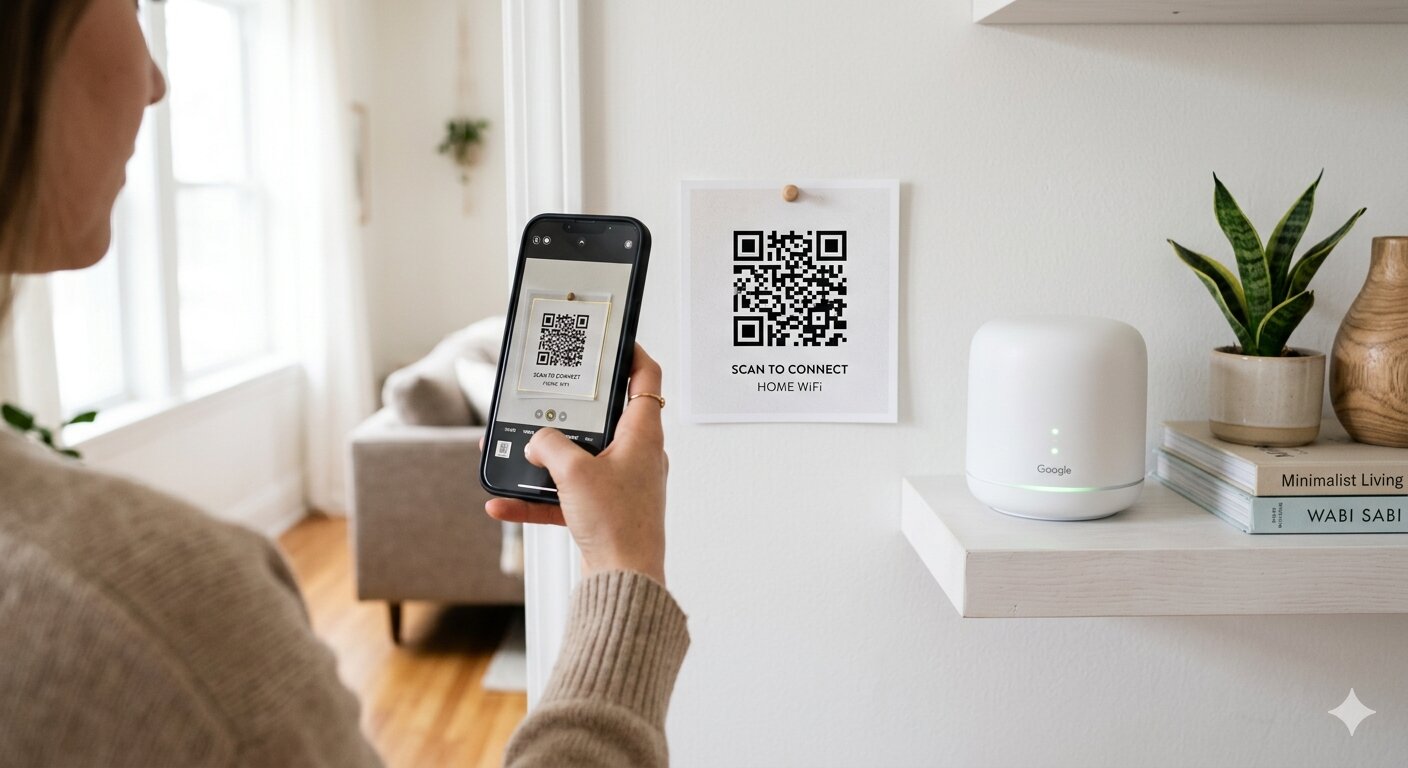
We've all been there. A friend comes over, asks for the WiFi password, and you end up spelling out a string of random characters while they mistype it three times. It's a tiny annoyance — but there's a better way.
You can create a QR code that contains your WiFi network name and password. When someone scans it with their phone camera, they connect automatically. No typing, no mistakes, and it takes about 30 seconds to set up.
How WiFi QR Codes Work
A WiFi QR code encodes three pieces of information: your network name (SSID), the password, and the security type (usually WPA2 or WPA3). When a phone scans this code, it reads the data and prompts the user to join the network — one tap and they're connected.
Both iPhones (iOS 11 and later) and Android phones support this natively through the camera app. There's nothing extra to install on the scanning side.
What You Need
To create a WiFi QR code, you need:
- Your WiFi network name (SSID) — Exactly as it appears in your phone's WiFi settings, including capitalization.
- Your WiFi password — The full password, again exactly as set on your router.
- The security type — Almost always WPA/WPA2 for modern networks. If you're unsure, WPA2 is the safe bet.
Where to find these: check the sticker on the bottom or back of your router, or look in your router's admin settings. On iPhone, you can also go to Settings → Wi-Fi, tap the info icon next to your network, and see the network name. The password isn't shown, but you can find it in your Keychain if you've saved it.
How to Create the QR Code
There are several ways to generate a WiFi QR code. Here are the most common:
Using a QR Code App
The easiest method for most people. A few apps that support WiFi QR codes:
- Simple QR Code Gen — Select "WiFi" as the QR code type, enter your network name, password, and security type, and it generates a scannable code instantly. You can customize the colors and add a logo, then save the image or print it.
- QR Reader — Primarily a QR scanner, but also includes a generator with WiFi support. Simple interface for basic QR creation.
- Visual Codes — Focuses on generating clean, minimal QR codes. Supports WiFi and other formats with a straightforward design.
Using a Website
If you'd rather not install an app, websites like qifi.org let you enter your WiFi details in a browser and generate the code instantly. Just be mindful that you're entering your password on a third-party site — use reputable ones and avoid sites that ask you to create an account for something this simple.
Using a Shortcut on iPhone
If you like automation, you can build an Apple Shortcut that generates a WiFi QR code. Search the Shortcuts Gallery for "WiFi QR" and you'll find pre-made options that pull your current network info and produce a scannable code.
Where to Put Your WiFi QR Code
Once you've generated the QR code, the real convenience comes from putting it somewhere visible. Popular spots:
- Print it and stick it on the fridge — Guests see it immediately and can scan without asking.
- Frame it near the front door — Some people get creative and frame it with a "Scan for WiFi" label.
- Add it to your Airbnb or rental listing — Much easier than including a password in the welcome instructions.
- Tape it to the router itself — Practical if the router is visible.
- Keep it in your photos — Save the QR code image to your camera roll so you can show it to anyone, anywhere.
Is It Secure?
A WiFi QR code contains your network password in plain text — it has to, so the scanning device can read it. That means anyone who can see the QR code could technically extract the password.
In practice, this is the same risk as writing the password on a sticky note on your router, which is what most people do anyway. If you're concerned, keep the printed code in a spot where only trusted guests can see it, and don't post it publicly.
For extra security, consider setting up a separate guest WiFi network on your router with its own password, and creating the QR code for that network instead of your main one.
One Less Thing to Spell Out
WiFi QR codes are one of those small quality-of-life improvements that, once you set up, you'll wonder why you didn't do it sooner. It takes 30 seconds to create, works on every modern phone, and saves you from the password-spelling ritual every time someone visits.