
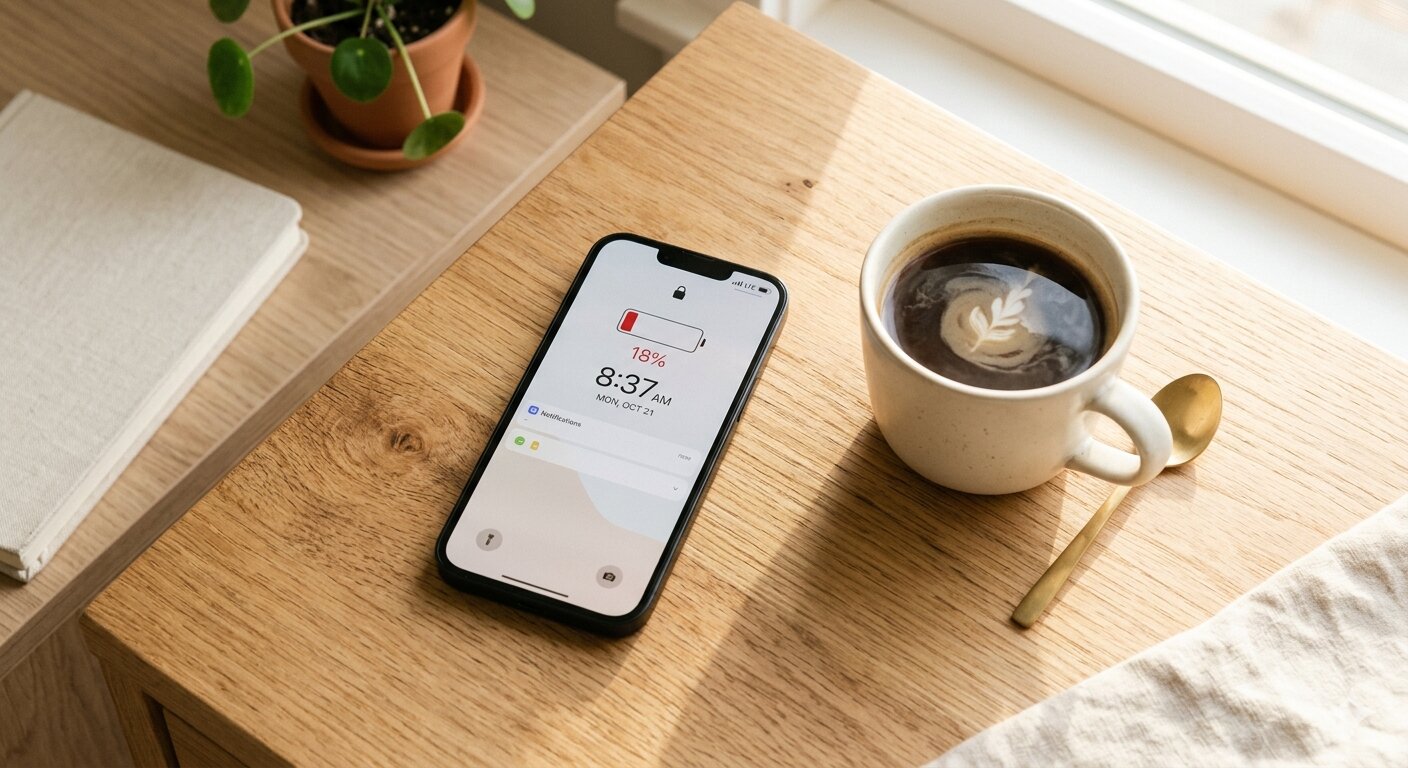
There's nothing worse than watching your iPhone battery hit 20% at 2 PM. You've barely used it — or at least it feels that way — and you're already hunting for a charger. The truth is, most battery drain comes from a handful of settings and habits that are easy to fix. You don't need to turn your phone into a brick to get through the day.
Check What's Draining Your Battery
Before changing anything, look at what's actually using your power. Go to Settings > Battery and scroll down to see a breakdown by app. This shows you which apps consumed the most battery over the last 24 hours or 10 days.
You might be surprised. Often it's not the apps you use most — it's the ones running in the background, refreshing content, or tracking your location when they don't need to. This screen is your starting point for targeted fixes instead of guessing.
Turn Down Screen Brightness
Your display is the single biggest battery drain on your iPhone. Auto-Brightness (Settings > Accessibility > Display & Text Size) helps, but it doesn't always get it right. On a typical day, keeping your brightness around 40–50% is enough for indoor use and saves a significant amount of power.
Also consider reducing your Auto-Lock timer to 30 seconds. Every extra minute your screen stays on while you're not looking at it adds up over the course of a day.
Manage Location Services
Many apps request "Always" access to your location, but very few actually need it. Go to Settings > Privacy & Security > Location Services and review each app. Switch most of them to "While Using the App" or "Never." Maps, ride-sharing, and weather apps need location access — your shopping app probably doesn't.
This alone can make a noticeable difference, especially for apps that continuously ping GPS in the background.
Limit Background App Refresh
Background App Refresh lets apps update their content when you're not using them — checking for new emails, loading social feeds, syncing data. It's convenient, but it keeps your processor and radio active throughout the day.
Go to Settings > General > Background App Refresh and turn it off for apps that don't need real-time updates. Keep it on for messaging and email if you rely on push notifications, but disable it for things like news apps, games, and social media. You can always pull to refresh when you open them.
Use Wi-Fi When Available
Cellular data uses more power than Wi-Fi. When you're at home, at work, or anywhere with a reliable Wi-Fi network, make sure you're connected. Your iPhone usually handles this automatically, but it's worth checking if you've disabled auto-join on certain networks.
On the flip side, if you're in an area with weak cellular signal, your phone works harder to maintain a connection — which drains the battery faster. In truly dead zones, switching to Airplane Mode (and turning Wi-Fi back on separately if available) can save a surprising amount of power.
Charge Smarter
How you charge also matters for getting through the day. A quick 15-minute charge with a decent charger can give you enough power to last several more hours. But not all chargers deliver the same speed — a 5W adapter charges much slower than a 20W or 30W one, which matters when you're topping up in a hurry.
If you're not sure how fast your charger actually is, a few apps can help you measure it:
- Watt Charging Speed — Shows your real-time charging wattage so you can see exactly how fast your iPhone is charging. Useful for comparing chargers and cables to find which combination gives you the fastest top-up.
- coconutBattery — A battery health monitor that shows charge cycles, capacity, and current power input. Originally a Mac app with an iOS companion.
- Battery HD+ — Displays estimated time remaining for common activities and tracks your battery level over time with graphs.
A Few More Quick Wins
- Turn off unnecessary notifications. Each notification wakes your screen and processor. Audit your notification settings and disable alerts for apps that don't need your immediate attention.
- Use Dark Mode on OLED iPhones. If you have an iPhone with an OLED display (iPhone X and later), Dark Mode saves real battery because black pixels are actually turned off.
- Disable Live Activities you don't need. Live Activities on the lock screen look nice, but each one takes a small toll on battery life when they update frequently.
- Keep your iPhone updated. Apple regularly optimizes power management in iOS updates. Running the latest version often improves battery efficiency.
The Bottom Line
Making your iPhone battery last all day is mostly about eliminating waste — screen brightness you don't need, background activity you don't notice, and location tracking you never asked for. Spend five minutes going through your settings, charge smartly when you get the chance, and you'll be surprised how much longer your battery holds up.