
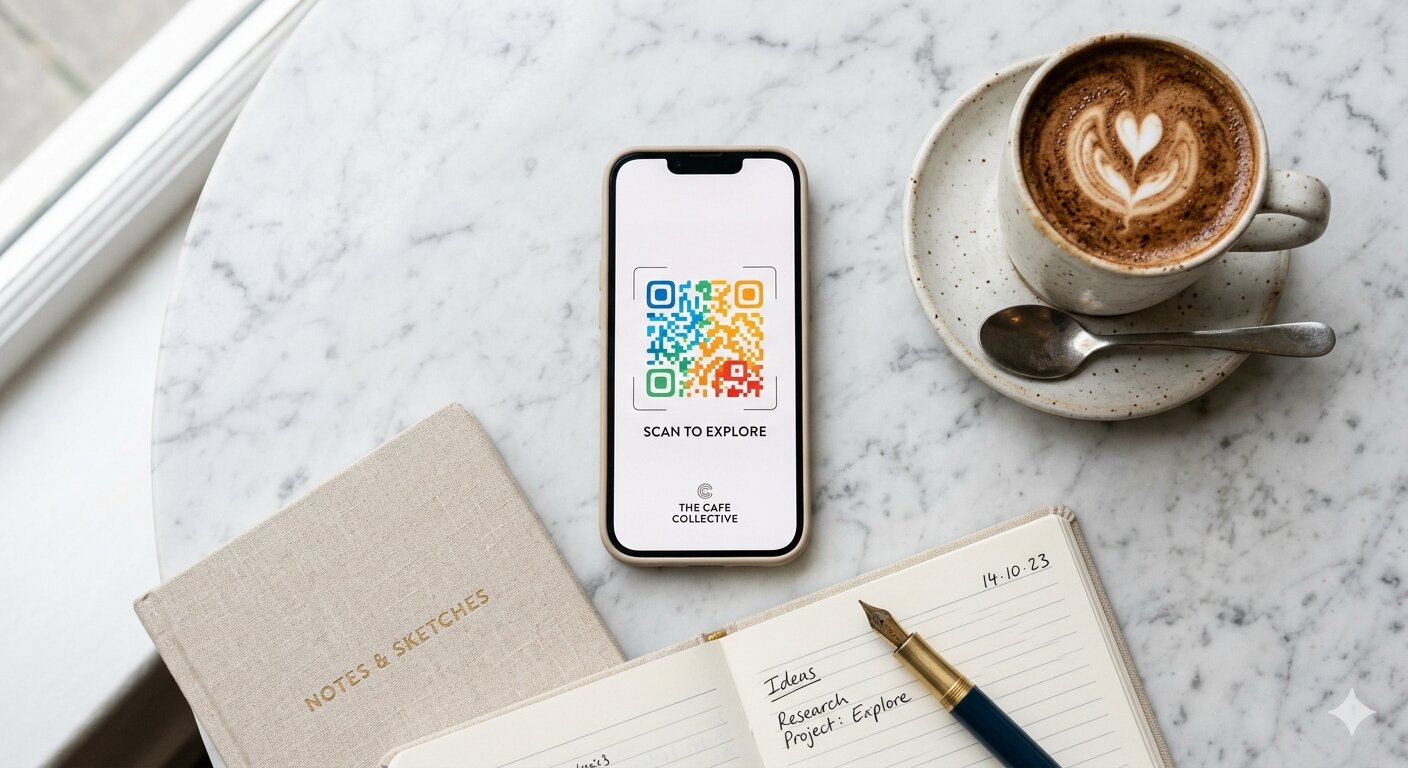
QR codes are everywhere — restaurant menus, business cards, event tickets, WiFi logins, payment links. But most people only scan them. What if you need to create one?
Whether you want to share a website link, your WiFi password with guests, or your contact information at a networking event, you can generate a QR code right from your iPhone in seconds. Here's how.
What Can You Put in a QR Code?
A QR code is just a way to encode information visually so a phone camera can read it instantly. You can encode almost anything:
- URLs — Link to a website, social media profile, or portfolio
- WiFi credentials — Let guests join your network without typing a password
- Contact info (vCard) — Share your name, phone, email, and address in one scan
- Email — Pre-fill a recipient, subject, and body
- Phone number — One scan to call or save
- SMS — Pre-compose a text message
- Plain text — Any message or note
- Map location — Pin a GPS coordinate for directions
The most common use cases are URLs and WiFi sharing, but QR codes for contact info are increasingly popular at conferences and meetups.
Method 1: Use Apple's Shortcuts App
iOS has a built-in way to generate QR codes using the Shortcuts app — no download needed. Here's how:
- Open the Shortcuts app
- Tap + to create a new shortcut
- Add the action "Ask for Input" (set to Text)
- Add the action "Generate QR Code"
- Add the action "Show Result" or "Save to Photos"
- Run the shortcut, type your URL or text, and you'll get a QR code
This works for simple text and URLs. However, it doesn't support WiFi codes, contact cards, or any visual customization. For those, you'll need a dedicated app.
Method 2: Use a QR Code Generator App
If you create QR codes regularly — or need something more than a plain black-and-white square — a dedicated app gives you much more control. Here are some solid options:
- Simple QR Code Gen — Generates QR codes instantly as you type with a live preview. Supports 8 types (URL, text, WiFi, email, phone, SMS, contact, location) and lets you customize colors, add a logo in the center, and include a title and caption. No ads and no data collected.
- QR Tiger — Feature-rich generator with analytics and tracking for dynamic QR codes. The free tier covers basic static codes.
- QR Reader & Creator — Simple reader and generator combo. Creates basic codes from text, URLs, and WiFi credentials.
The main advantage of an app over Shortcuts is speed and flexibility. You can generate a WiFi QR code in a few taps, customize the design to match your brand, and share it directly — without setting up an automation.
WiFi QR Codes: The Most Useful Trick
This is worth highlighting because it solves a problem everyone has: sharing your WiFi password with guests.
Instead of spelling out a long password, you can create a QR code that contains your network name, password, and encryption type. When someone scans it with their phone camera, they'll get a prompt to join the network automatically. No typing required.
To create one, you need three things:
- Your WiFi network name (SSID)
- The password
- The security type (usually WPA2 or WPA3)
Generate the code, print it out or display it on a frame, and put it somewhere visible. It's one of those small things that genuinely makes life easier for everyone.
Making Your QR Code Look Good
A plain black-and-white QR code works fine technically, but if you're putting it on a business card, poster, or social media, a bit of customization goes a long way:
- Add your logo — Place a small logo or icon in the center. QR codes have built-in error correction, so they can still be scanned with part of the pattern covered.
- Change the colors — Use your brand colors for the foreground. Just keep enough contrast — dark patterns on light backgrounds scan most reliably.
- Add a caption — A short label like "Scan to connect" or "Visit our site" tells people what they'll get.
Avoid making the QR code too small. On printed materials, aim for at least 2 × 2 cm. On screens, make sure it's large enough to scan without zooming in.
Static vs. Dynamic QR Codes
A static QR code has the information baked in — once created, it can't be changed. This is what most free generators create, and it's perfectly fine for WiFi passwords, contact info, or permanent links.
A dynamic QR code points to a redirect URL that you can update later. This is useful for marketing campaigns where you might want to change the destination without reprinting the code. Dynamic codes typically require a paid service.
For personal use, static codes are all you need.
Quick Start
Here's the fastest path to your first QR code:
- Decide what you want to encode (URL, WiFi, contact info)
- Open a QR code generator app or the Shortcuts method above
- Enter your information
- Customize colors and add a logo if you want
- Save to Photos or share directly
The whole process takes under a minute. Once you start using QR codes for everyday things like WiFi sharing and contact exchange, you'll wonder why you didn't start sooner.